Showing posts with label Tips. Show all posts

Saturday, January 12, 2008

Connect To Windows Live Hotmail Using Office Outlook Connector

Connect To Windows Live Hotmail Using Office Outlook ConnectorIf you have a Hotmail mailbox (also known as Windows Live Hotmail), it is now possible to check your e-mail using Office Outlook 2003 or 2007 versions by installing the Office Outlook Connector.

Once installed, you can read and send messages, manage contacts, and use Outlook's junk mail filter and rules wizard. The one drawback with the connector is that you can't sync and manage calendars between Outlook and Hotmail unless you have a paid subscription.

To get started, download the Office Outlook Connector (requires Windows Validation check) and follow the install instructions. Once installation has completed, Outlook will open and the Office Outlook wizard will run.

In the first screen, enter you Windows Live Hotmail E-mail address, Password and the display name you want to appear in the Inbox, then click OK

Connect To Windows Live Hotmail Using Office Outlook Connector
If you prefer, you can also select the check box to Remember my password.

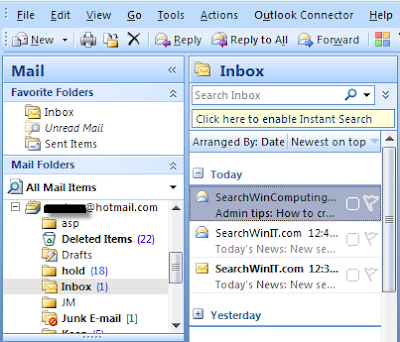
After entering you info, click OK at the next prompt and restart Outlook for the settings to take effect. When Outlook restarts, it will automatically connect to your Windows Live Hotmail account and start dowmloaded messages and any folders you have created.
Connect To Windows Live Hotmail Using Office Outlook Connector

The connector adds the 'Outlook Connector" item to Outlook menu bar where you can view Help, add another Hotmail account, and select the Download mode (Headers, Full items or both). Note, some item options are not available and only enabled if you have a paid Windows Live Hotmail subscription.

Connect To Windows Live Hotmail Using Office Outlook Connector

To set up the Junk E-mail filter in Outlook for your Hotmail mailbox, select Tools \ Options from the menu. Then on the Preferences tab, click Junk E-mail and make your selections. Also, just like managing e-mail in Outlook, your Hotmail mailbox can be manged in offline mode. Any messages you compose, reply or forward will remain in the outbox until a connection is made to Hotmail.

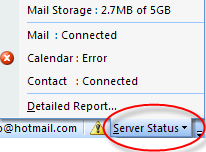
Additionally, you can see the connection status of your Windows Live Hotmail account in the Outlook window. Just look for Server Status in the lower-right footer of Outlok and click the down arrow to view the information:

Connect To Windows Live Hotmail Using Office Outlook Connector

If necessary, Office Outlook Connector can be uninstalled from the Control Panel Add or Remove Programs in XP or from Programs and Features in Vista.

Thursday, April 19, 2007

Step by Step Driver Backup Using Portable Application

Step by Step Driver Backup Using Portable Application
Today, I'm gonna share something important to all of you. I'm gonna tell you exactly how I create Driver Backup for my laptop using Portable Driver Genius.

Portable Driver Genius application a tiny Utility that allows you to create a backup of all your important third party Windows system drivers. This tool can be useful for anyone that might need to reformat or reinstall Windows but doesn’t want to hunt down all of the necessary drivers at post install. Driver Genius copies your computers third party system drivers to it’s own “Backup Drivers” directory, making a backup that is easy to retrieve later.

First, you are going to have this excellent application. Get it here >> Portable Driver Genius.

After the download finish, extract it. Double click on the Driver Genius icon to start the application.

Here's what main windows looks like:-

After that, go to Option > Backup Type > EXE Auto installer.

Then, check or tick the drivers that you want to backup like drivers for display, processor, graphic card and so on. You may check all drivers to make your job easier.

After that, choose your Backup driver location like D:/Driver backup. Press Start Backup button to start the process.

Done ! IF you want to reinstall all the drivers ( after you formating your OS ), just double click MyDrivers.exe

Hope this guide will help to make your job easier in the future.

AddThis Social Bookmark Button AddThis Feed Button

How To Disable Firefox Scrolling Tab


How To Disable Firefox Scrolling Tab

Some of us like to open too many once at a time but some are not. For those who are not familiar with scrolling tab, they may not like it. Its a bit annoying for them.

Well, here's the way to disable the "scrolling tab" function in Firefox Browser:-
  • Type about:config into your firefox address bar.
  • Search for browser.tabs.tabMinWidth key. default value is 100.
  • To disable tab scrolling completely, set the value to 0. To make more tabs fit before scrolling gets activated, set that number to 50 (or lower).


Saturday, April 14, 2007

BrO_AcT Facts That You Need To Know

BrO_AcT Facts That You Need To Know

Lately, a lot of my friend's computer have been infected by BrO_AcT worm/virus. And it cause them a lot of trouble to get rid of this new virus. Moreover, the information on the Net is still very limited since it is a new virus. Recently, I've found the facts about this virus on the Net and want to share with you so that you will know if you've been a victim or not.

1)What is BrO_AcT ?

Symantec AV -> identify it as W32.sillyDC.
DrWeb CureIT -> identify it as Win32.HLLW.Broact
TrenMicro -> identify it as WORM_VB.BHE

Panda AV -> identify it as W32/SexyGirl.A.worm
Avira -> identify it as Worm/VB.DH.1

2)How it Spreads ?

Normally it spread via removable storage devices(USB drive) . Infected thumb drive will show these files: "MySexy.exe", "User.exe" and "Sexy.Dat".

3)Symptomps

-Popup box appears after login into the Windows, with the title "BrO_AcT.exe". It contains a message but I don't remember what it is written.
-Look at your title bar. An infected hardisk will show the folder name + [:Restricted by BrO_Act:]
- When you try to open C:\Windows\System32 folder, explorer close itself.
- Right click My Computer, select Properties, select Computer, click Change button, you find that your computer name has been changed to "ReAct_User"
-Your antivirus has been deactivated.
-You can't access Task Manager, Regedit, Msconfig, Folder option, and Command prompt.

4)How Do I Confirm that I'm Infected ?

Run Hijackthis. These are the entries added:
C:\WINDOWS\system32\BrO_AcT.exe
F2 - REG:system.ini: Shell=Explorer.exe "C:\WINDOWS\default__.pif"
O4 - HKLM\..\Run: [System] C:\WINDOWS\SYSTEM32\BrO_AcT.exe
O4 - HKCU\..\Run: [svchost] C:\WINDOWS\SYSTEM32\ReAct_User\svchost.exe


5)What Will This Virus Do or Create in Your Computer ?

It will create and add the following files :-

-C:\Windows\system32\BrO_AcT.exe
-C:\WINDOWS\default__.pif
-C:\WINDOWS\SYSTEM32\ReAct_User\svchost.exe
-C:\WINDOWS\SYSTEM32\ReAct_User\winlogon.exe
-C:\ReActLog (Something with this name)
-NTDETCH.com (on all your drive, root folder)
-Autorun.inf (on all your drive, root folder)
-Hundreds of files in C:\System Volume -Information\_restore{7C0D0734-E9F5-4A30-ABD4-977206CFACB2}\RP411 (With name like -A0062080.com, A0062083.pif, A0062092.exe and etc)
-C:\WINDOWS\system32\MySexy.exe
-C:\WINDOWS\system32\regedit.com
-C:\WINDOWS\system32\msconfig.com

It also will copy itself to any portable USB drive connected to the infected system and creating:-
->Autorun.innf
->BrO_AcT.exe
->My_SeXy.exe

and the USB drive will autorun anytime you connect it to the system. "THIS IS THE WAY HOW THE VIRUS SPREAD".


6) How Do I Get Rid of BrO_Act.exe ?


Update your anti-virus with latest virus definition. As far as I know :-

Nod32 AV - not detect, system infected
BitDefender 10 - not detect, system infected
McAfee - not detect, system infected

Avira - detected as
Worm/VB.DH.1
AVG 7.5 Pro - detected as W32/VB
Kapersky - detected as Win32.VB.DH


I hope this little info will help you to eliminate this annoying virus.


AddThis Social Bookmark Button AddThis Feed Button

Friday, April 13, 2007

Juzt-Reboot Recovery Card


Juzt-Reboot Recovery Card

While surfing, I found this great information and want to share with all of you.
Basically, what is Juzt-Reboot ? It is an Instant Recovery with Intelligent Back-up Technology.

You may have encounter some serious problem before like Software corruption,unknown virus attack and accidentally deleting wrong files,changing the wrong settings during installation of Application, or your hard disk have to be formatted. Then you may have the experience of how difficult re-installing your application or Operating System over and over again ? Believe me, not only this task aggravating but it also takes up a lot of valuable time. This is where "Juzt-Reboot Data Recovery Card" comes into the picture.

This PCI card restores your hard disk drive back to its original configuration in just a matter of seconds. Even if your data was destroyed by a virus or was accidentally deleted. "Juzt-Reboot Data Recovery Card" will not only notify you of a malfunction but it will also perform a recovery operation to reset to you original system settinngs.

Add to : Social Bookmarking

Thursday, April 12, 2007

Comparing Laptops Features

Comparing Laptops Features
By: Jimmy Sturo


With the turn of the century, technological advancements and automated systems have revolutionized the lifestyle of many individuals all over the world. People have become almost completely dependent on computer systems for work, entertainment, and communication. The laptop is a technological marvel of the 21st century. They are portable computers, requiring no elaborate wiring.

Today's laptop market offers a wide selection of laptops with different features. With so many options, buyers are advised to carefully evaluate their needs and compare features of different laptops before purchasing them. Processor speed is one of the key factors for the comparison of laptops. It determines the speed at which the laptop can retrieve data and information. The lower the speed the cheaper the laptop is. System memory is another significant factor to be considered while comparing laptops. System memory is essential for operating multiple functions simultaneously. 128Mb and 256Mb are sufficient for normal operations. If the user needs to perform complex and multiple functions, 512Mb is recommended. The hard drive stores files, data, documents, and other information on the laptop. 10GB to 20GB hard drives are sufficient for laptops. The optical drive refers to external storage readers and can be a CD-ROM, CD-RW, or DVD-ROM or RW or a combination of both. The optical drive allows the user to read files and information from compact disks or DVD disks. It also allows the user to write files to the disk for portable storage. Buyers are recommended to determine the type of optical drive that would best suit their needs before purchasing the laptops.

Customers should also compare Internet connectivity features available with different laptops, such as internal modems and wireless connectivity. Some laptops are only compatible with specific operating systems such as Linux, Microsoft, Mac, and so on. Users are recommended to choose laptops based on the type of operating system it offers.

Manufacturers such as Dell, Apple, Compaq, Toshiba, and IBM have strengthened their position in the laptop market, and offer a wide selection of laptops with unique features and modern technology.

Laptops provides detailed information on Laptops, Cheap Laptops, Used Laptops, Refurbished Laptops and more. Laptops is affiliated with Laptop Hinge Repair.

Add to : Social Bookmarking

Tuesday, April 10, 2007

Ink Refills Vs New Ink Cartridges


Ink Refills Vs New Ink Cartridges
By: Oliver Turner

Printer cartridges consist the maximum amount of expenses for running a printer. At present there are two ways of replacing your printer cartridges-buy a new cartridge or refill the old one.

New Ink Cartridges

There are two ways you can buy new ink cartridges. You can buy from the printer manufacturer or buy a third-party compatible cartridge. Compatible cartridges, majority of which are made in China, cost less than those made by the OEM (original equipment manufacturer). Other than these two there are also remanufactured cartridges available in the market. These are official OEM cartridges that are professionally cleaned and refilled by the OEM and then put for sale. When using compatible or remanufactured cartridges, not much of a difference would be visible in terms of print quality as long as your printing job is restricted to black text. But when it comes to printing graphics or charts, the difference in quality between new cartridges vs compatible or remanufactured cartridges is clearly visible. It is advisable that individuals who deal with printing photographs or graphical presentations should stick to new ink cartridges. When buying a third-party cartridge, make sure that the manufacturer is a renowned one. Faulty or incompatible cartridges can seriously damage printers.

Ink Refills

Refill kits are available in the market, which contain ink and needles and the buyer has to refill the cartridges on his own. Remanufactured cartridges are the same but the refilling is done in a professional environment and it is impossible for you to match that professional quality. Ink refill kits are good value for money only when you are printing black text. Ink refill is not possible for any length of time. Printer cartridges come with a printer head that wear out after prolonged use. Once the printer head wears out, the cartridge needs to be changed.

Find more about Printer Ink on http://www.LeanderNet.com/Printer_ink/Printer_ink.php. More useful content on LeanderNet - http://www.LeanderNet.com

Sunday, April 8, 2007

RATs: Remote Access Trojans and How to help avoid them


RATs: Remote Access Trojans and How to help avoid them

What can a RAT do?
i) Expose you to scams
ii) Find your files
iii) Record your typing
iv) Capture video and audio
v) Create pop-ups
vi) Attack other computers

How to help keep RATs away :-
i) Practice safe online communication
ii) Use trusted software from reputable companies.
iii) Keep your computer up to date.
iv) Use current security software
My advice to you is to keep your anti-virus up-to-date, and always scan your computer to prevent any virus from entering your computer. If not, you will be in BIG trouble. Your private data could be steal by hackers.

Add to : Social Bookmarking

Thursday, April 5, 2007

Top 3 Ways to Speed Up Your PC Internet Connection


Top 3 Ways to Speed Up Your PC Internet Connection
By: Gaelim Holland

Why is your internet connection speed so slow?

Because you have not been nice to your bandwidth

There are number of simple and easy ways to speed up your PC on the net. Most of these solutions will cost you absolutely nothing. So before you invest in a program that will speed up your internet access. Take the time to perform a few maintenance tips to speed up your PC on the net.

The most important thing to remember is that your bandwidth has a limit. You paid for this limitation when you signed up to your internet service provider. So, treat your bandwidth as a precious commodity. If your PC speed on the net is slow, its probably the result of improper use of your bandwidth.

Here are the best ways to speed up your PC on the internet:-

1. Use a Firewall

A Firewall allows you to control both incoming and outgoing internet traffic on your PC. The more programs you allow to use your bandwidth, the slower your PC speed on the net becomes. Control the traffic stop the congestion and erosion of your bandwidth.

2. Eliminate Index.dat files

These are little demons that will significantly slow down your computer's speed on the internet. Microsoft designed these secret human unreadable files to re-record all your internet history. All viewed web pages, downloads, even this article is logged there. These files can grow up 100 megabytes. These large files requires CPU constant access and bandwidth. Microsoft claims the files were originally designed to increase internet speed by mimicking a server. But it does the opposite because these files are re-record your internet history. This requires double the bandwidth of other files. Speed up your PC on the internet by eliminating these files.

3. Use a proxy

This is a very simple procedure that will speed up your PC internet access as much as 30%. Proxies allow you to surf through a server. This server network can load thousands of popular web pages. Therefore, there is no reason to use bandwidth to access them. They are already pre-loaded. This will speed up your PC internet access time considerably.


Add to : Social Bookmarking

Wednesday, April 4, 2007

Choosing SEO Service


Choosing A Good SEO Service

Search Engine Optimization(SEO) is very important to every website. In order for your website to be noticed by the search engine, it actually needs to be properly optimized, regularly update and maintained. Without proper SEO strategy your website can be considered dead or ignored.

So, choosing the right SEO company is very important to help your website to get maximum exposure to attract more traffic or customers especially for marketing’s website.

So, what will the SEO service do for you ? Basically a good SEO service will perform an analysis on your site by analyzing page design, functionality and content. Proper design and unique content is very important to spiders and peoples because they tend to read content that is different & unique then the usual content. Then, they will replace an appropriate keywords on your site so that it get better position within search engines.

An SEO company may also provide an off page optimization linking strategy for your site to get wide exposure to the public.
One more important thing, a good SEO company will make certain optimization is an ongoing process, not a one time deal. They will provide continuing customer support and maintenance, so that your website is always up-to-date with the latest search engine trends.

Add to : Social Bookmarking

Saturday, March 31, 2007

Understanding Browser Hijacking And How To Correct It

Understanding Browser Hijacking And How To Correct It

By: Otis Cooper


If you are an Internet junkie and surf nearly 24 hours a day, it may be to your benefit to understand how Web Browser hijacking works and what you can be to prevent it as well as get rid of this nagging problem should you experience it.


The web contain sites that will override your browser's homepage setting and then replace it with their own. You can correct this by opening Internet Options in Control Panel and under Home Page, click either use blank or you specify a site of your choice.


But correcting a hijacked home page is much easier than correcting a hijacked Web Browser itself.This happens when your Web Browser is taken over by software with you having little and sometimes no control over its actions.


This happens when you are hit by such browser hijacking programs as CWS or CoolWebSearch.This software appeared in 2003 and is now one of the most invasive browser hijackers.You know you have been struck when you experience the following actions in your browser.

There is a noticeable decrease in overall PC performance. User's homepages are Smartsearch or other hijacked files and attempts to remove these are blocked.
Suddenly there appears a new toolbar in your browser You are bombarded with porn ads and porn is now being bookmarked in your favorites.


Your Internet Explorer browser quickly slows to a crawl. All web searches are redirected to other sites, in nearly all cases they will be porn. You will have little and sometimes no control over your web browser.Watch the files you download.
These programs may sometime arrive via a download. If this happens, you need to pay attention to where you are on the Internet and avoid these locations. Try to avoid downloading free screensavers for example.

Free screensavers or screensaver samples are often loaded with spyware, adware, and who knows what other insidious files that lurks within. If you do perform such download do a good virus, spyware scan.
What would be the remedy to get rid of this nightmare. You would not want porn pop-ups appearing on your PC when little Mary or David is nearby.


First go to http://www.helptogo.com and click on the link for a program named Hijackthis. Having this or other hijack removal files on disk will be your first line of defense.
And try to download CoolWebShredder to see if it will remove the program. However, even this may not work. http://www.softpedia.com is where you can learn more and download this program.


If CoolWebShredder don't work, you will have to do a complete reformat of your hard drive followed by a clean installation of Windows XP.

If you're computer is working fine now, take the time to backup your critical files. If you have to perform a clean installation of Windows XP, you will lose programs you installed.
Web Hijacking is growing and fast becoming a real pain in the "you know what" and removing them are becoming more and more a big headache.


You can also go to Google and do a search for the term "web browser hijackers" and find other files you can get to be ready you should run into this annoyance. Download the file and copy it on a cdrom or floppy disk, depending on the file size. Make two copies of the file and store it a safe place should you need it.


When you visit a site, you may be watched by what is known as a Web bug. This is a tiny graphic which sends information to another computer.It will have your IP and web site address and other data about you. As you spend time on the Internet, stop and take time to learn as much as possible about these Web Bugs.This bugs may transmit your web site and email address, for example to the web bug's main computer.


But being in the know ahead of time can save you lots of downtime using the Internet.Have that backup handy, and prepare an XP Recovery Kit and place in a safe and very secure place.


Author:-
Otis F. Cooper is solely dedicated to boosting the knowledge and confidence of every computer user. Sign up to receive his informative articles every month and learn PC Repair absolutely free.Sign up now and watch detailed, in depth pc repair videos on cdroms and dvds.See sample videos at http://www.ultimatepcrepair.com/

Add to : Social Bookmarking

Beware of Website "TRAP"


Beware of Website "TRAP"
Nowadays, we are facing with a lot of threat like Trojans, spyware worms when surfing the Net. The people out there who claim themselves as hackers became more “creative” to exploit the technology. They are using many different ways to cause us a lot of troubles during surfing like installing spyware that can slow our computer’s performance, stealing data and etc.

Today I am going to tell you most popular Website “trap”.

1) FakeWebsite
-For your information, “fake” website is usually used to steal our private data.
-Its hard to differentiate between the real web and fake because the interface is exactly the same.
-This fake website usually sent by email(spam), telling you to update yur account information or telling you that your account encounter some problem. So in order to fix the error or update your account, they provide LINK (fake link )in the email.
-If you click the link, you will be brought to the fake website. And if you giving your address, credit card number, hp no then your Done…

2) “Bad” Websites
-These websites usually directly infect or attack your computer.
-In order for them to begin their action, modern language of browser must be installed.
They are Java, javascript, or ActiveX.

3) Popup Windows
-Popup windows that suddenly appears during surfing is the other way for spyware to enter your computer. I’m always get this popup. What about you guys? If you surf a lot, I’m sure you will find it.
-These popup usually content some messages, like “you’ve win the lottery” , “your computer has been infected by spyware and in order to get rid of it you must click the popup” , “free screensaver” and many more.
-If you click “OK”, at that time spyware automatically enter your system without being noticed.

4) Creative Version of Popup Windows
-This is the evolution of popup windows. This popup usually has nice Close Button( X ). Usually when you see this button, you will click on it to close the popup.
-You are totally wrong. When you clicked X, it will start the process of downloading some data and may be dialing some unknown services that, high charges services.
-When you received this kind of popup, what should you do ? Here’s the solution.
Close the popup with the keyboard combination “Ctrl + W”.

5) Hidden Link
-There many ways to attached Trojans or spyware in mp3 files or video files
-There are some cases that the downloaded mp3 files come with hidden link.
So, when you try to play the mp3 files using media player or winamp, your browser may be open a few windows or popup that contain ads.
-Just remember, on the Net spyware is everywhere.

I think that’s all. Hope this tips will give you some guide when facing the same problem as I state above. Tell your friend about this. Protect your privacy !...

Add to : Social Bookmarking

Saturday, March 24, 2007

How to Restrict File Sharing

How to Restrict File Sharing
Right now, I am using windows XP professional as my primary operating system. Since my college got the LAN connection, we are able to share anything in our workgroup.Since i am the one downloading a lot of tv series(like Prison Break, Heroes, Smallville ), movies and anime, I have to share it after downloading because a lot people there likewatching anime and tv series.

By sharing a lot of stuff in the network, my computer become slower.It makes feel uncomfortable especially during playing game.My computer become a bit lag because too many accessing my network that time. Then I've decided to give access to my computer only to certain. So,how can I do that in windows XP.

After searching around, here's the solution, "Applying Password on Shared Folders".

Quick Tips:-
1) Go to Control Panel > Administrative tools
2) Then Computer Management
3) On the left column, you will see Local Users and Groups
4) Double click it
5) Click on users now...Right click on Guest.
6) Click on Set Password Option from menu.
7) Enter your password.
8) Click OK...done!

Now you have successfully implement password on your share folder.So, if someone want to access your share folder, he/she must know the password,if not the share folder cannot be accessed. Give the password that you've created only to certain people that you want them to access your network.

Add to : Social Bookmarking

How Safe Is Your Computer


How Safe Is Your Computer
By: A Singh


If you surf the web, you can be sure that you face the ongoing risk of spyware or adware. It is time you updated your antispyware programs to keep your PC healthy. But first let us briefly examine the most common types of spyware.

Gone are the days when viruses were expected only via our email. Now we don't even have to click a link to be infected. All we have to do is browse the Internet, and it's an open invitation to spyware. Spyware constitutes those programs that are deliberately lodged in your computer without your approval or knowledge. You can never live without spyware and adware protection.

Types Of Spyware

Adware is the worst form of spyware. These programs lay in wait for you to connect to the Internet and then they send you popups that give you all kinds of offers. And while you are thinking how considerate those websites are, these fake popups are actually recording your viewing habits and smuggling them off to marketing companies who sell you junk.

Another irritating form of spyware is the browser hijacker. After installing themselves on your PC, they just change your default homepage and search engine. When you start your web browser, you'll find that you are flooded with ads, porn and other stuff you don't want. The scary part of this is that they mine data - which means they report your surfing habits to someone who uses the information unethically.

Keyboard loggers are thieves who steal your PIN number when you bank online. They get your passwords. This means, without spyware protection, your personal information and assets can be stolen. Then there are Diallers that enter your PC through a virus infection, adult websites, warez, or even MP3s. A dialler is software that dials numbers at premium rates when you are not around and you end up with bills for thousands of dollars.

If you use file-sharing programs, while installing it, spyware also gets installed, unless you read your end user agreements carefully or have antispyware software installed to keep these Trojans away. Imagine having every keystroke recorded, and your private instant messages, emails and other conversations being logged and reported elsewhere without you knowing about it! No - not the best situation to be in! So, never be without spyware protection.

Is There Freedom From Spyware?

The only way to escape spyware or at least minimize its effects is to install antispyware software on your pc. Some programs just remove the spyware but cannot prevent new spyware from coming into your pc. Get firewall software, if you use broadband or high-speed connections. Avoid clicking on links that promise you free movies, prizes, free software etc. Update your antispyware program and scan your PC regularly.

Author is admin and technical expert associated with development of computer security and performance enhancing software like Registry Cleaner, Anti Spyware, Window Cleaner, Anti Spam Filter etc. Visit home page: http://www.pcmantra.com. Read More at PCMantra Resource Center.


Add to : Social Bookmarking

Friday, March 23, 2007

Get it Here Windows XP Networking ebook


I got something to share with you guys. Yesterday, I've read an ebook "Windows XP Networking Inside Out".
Quite interesting and full of useful tips and good explaination. Networking is an important concept that we have to understand.

Why Is a Network Necessary ? Well, most of us are already know that computer network allow the sharing information and resources, communcation( like email,instant messaging) and user management.

Here's what are you going to explore in this ebook :-

XP Internet Networking
_Configuring TCP/IP
_Creating network connection
_Configuring internet connection
_Using Internet Connection Firewall
_Using Outlook Express

Network Connectivity
_Managing Workgroup Connection
_Domain Connectivity
_Solving Connectivity Problems.

Advance Network
_Remote Desktop & Remote Assistance
_Remote Access
_Virtual Private Networking


Get it here >> Xp Networking Inside Out Ebook

Wednesday, March 21, 2007

What VIRUSES may do?


WHAT VIRUSES MAY DO TO YOUR COMPUTER

What can virus do to your computer once it has been infected? Below are possibilities you may experience when you are infected with a virus. Remember that you also may be experiencing any of the below issues and not have a virus.

  • Deleted files.

  • Various messages in files or on programs.

  • Changes volume label.

  • Marks clusters as bad in the FAT.

  • Randomly overwrites sectors on the hard disk.

  • Replaces the MBR with own code.

  • Create more than one partition.

  • Attempts to access the hard disk drive, which can result in error messages such as: Invalid drive specification.

  • Causes cross-linked files.

  • Causes a "sector not found" error.

  • Cause the system to run slow.

  • Logical partitions created, partitions decrease in size.

  • A directory may be displayed as garbage.

  • Directory order may be modified so files, such as COM files, will start at the beginning of the directory.

  • Cause Hardware problems such as keyboard keys not working, printer issues, modem issues etc.

  • Disable ports such as LPT or COM ports.

  • Caused keyboard keys to be remapped.

  • Alter the system time / date.

  • Cause system to hang or freeze randomly.

  • Cause activity on HDD or FDD randomly.

  • Increase file size.

  • Increase or decrease memory size.

  • Randomly change file or memory size.

  • Extended boot times.

  • Increase disk access times.

  • Cause computer to make strange noises, make music, clicking noises or beeps.

  • Display pictures.

  • Different types of error messages.

source : http://www.computerhope.com

Add to : Social Bookmarking

Tuesday, March 20, 2007

WinXP Manager ver 5.1.0


For software review today, I would like to introduce to you new version of WinXp Manager.

WinXP Manager
WinXP Manager is the powerful software tool to tweak and optimize Windows XP, it bundles more than 30 different utilities in one and help your system faster and more stable, secure and personal!

Features and Benefits of WinXP Manager
Get detailed system and all hardware information on your system; helps you to find out the missing Registration codes of Microsoft product; show all detailed information of running processes and threads on your machine; WinXP Manager offers optimization Wizard feature for the user without having any advanced knowledge.

Optimizer
Tweak your system to improve windows startup and shutdown speed; monitor and free your Physical Memory; tweak your hardware to increase system speed and performance; disable some unnecessary services which start with windows; repairs Internet Explorer and certain other System Components to restore these functions.

Cleaner
Find out which files or folders engross your disk space and shown with chart; Find and clean junk, unnecessary wallpaper and screen saver files to increase Hard Disk space; Duplicate Files Finder can scan your computer for files with the same size, name and modification time; Registry Cleaner can easily checks your registry and repair incorrectly linked registry entries, automatically remove invalid entries; Registry Defrag rebuilds and re-indexs your registry to reduce application response time and registry access time; smart uninstaller can uninstall and logoff installed programs neatly.

Customization
Control what is started on Windows startup; edit context menus of mouse Right-Clicking; customize system desktop, menus, toolbar and notifications settings, change Windows logon background; change system icons; custom OEM information; automatically change your desktop wallpaper on background.

Security
You can improve desktop, menus, control panel, windows logon securities, and enable numerous hidden performance options of system, disable system updates and error reports; hide and restrict to access drives, specify which applications are not allowed to be executed on your computer; encrypt/decrypt and shared files, camouflage folder to hide its content from Windows explorer, change the location of system folders; Privacy Protector can maintain your personal privacy by eliminating the tracks that you leave behind; create lots of randomization password once.

Network
Optimize your Internet connection speed, manage all shares items, search for and find out opened ports on your system; Tweak your Internet Explorer easily; backup all data in Outlook Express; automatically check the invalid URLs in your favorites and parse domain name; Message Sender can easily send messages to others.

Misc. Utilities
Show the collection of Windows utilities; control your computer when you're not at home; apply XP visual style to any Windows applications; appoint logging on time of any account users.

Download:
http://dl.filekicker.com/send/file/181245-ZKUW/xpmanager.exe
Patch:
http://rapidshare.com/files/20347544/WinXP_Manager_5.0.9.rar

Add to : Social Bookmarking

Monday, March 19, 2007

Why Should I Upgrade My Memory

Why Should I Upgrade My Memory
By: Alan Raimes


One of the very best upgrades you can make for your computer is to install more memory. Usually it's more cost-effective than almost any other upgrade you might look at. And isn't that the purpose? To get the most bang for your upgrade buck.

Not only is installing more memory pretty cheap, most people can get it done for between $50-200. But, it's also the most effective as well. It can improve your entire computing experience. From browsing the web, to doing multi-tasking, having more than one computer program running. Its especially important in families where the computer is used by different users. As that can be very memory intensive.

The amount of memory you'll need depends on what you use the computer for. So called power users who are playing games, creating videos and DVD's aren't going to be happy with less than a few gigabytes of memory. But, at the very least, you should shoot for at least 512MB of memory, and 1GB if you plan on using Microsoft Vista.

What you must keep in mind is that sometimes its difficult to match the memory you need with the computer. You have to have the right size, and picking the right speed memory makes a difference as well. When you have a laptop the problem is especially apparent. Laptops are notorious for not having much space for memory, and being picky about the memory that will run in them. Usually the users manual or the website of the computer company can help you determine what type of memory you need to upgrade.

What you must keep in mind is that sometimes its difficult to match the memory you need with the computer. You have to have the right size, and picking the right speed memory makes a difference as well. When you have a laptop the problem is especially apparent. Laptops are notorious for not having much space for memory, and being picky about the memory that will run in them. Usually the users manual or the website of the computer company can help you determine what type of memory you need to upgrade.

There are numerous websites that give detailed requirements of many of the computers and the memory requirements of each. Most of them are provided by the leading memory manufacturers like Crucial, and are very good resources. .

Even if it looks complicated, in many cases upgrading the memory in your computer is the best way to improve the performance of your computer. It can delay the need for a new computer by months or years. Don't feel hampered by slow performance, upgrade today.

Alan Raimes is a specialist in computer repair in Jacksonville, FL. For more information about computer repair, memory upgrades, and laptop repair visit his Jacksonville Computer Repair website.

Add to : Social Bookmarking

Design by Free blogger template